Инструкции · Интеграции и данные
How to connect Zoom
Once Zoom is connected, the agent works with your meetings: it creates them, sends invitations and reads recordings, transcripts and AI Companion summaries. You sign in on Zoom's own site, so no password is entered in the portal.
-
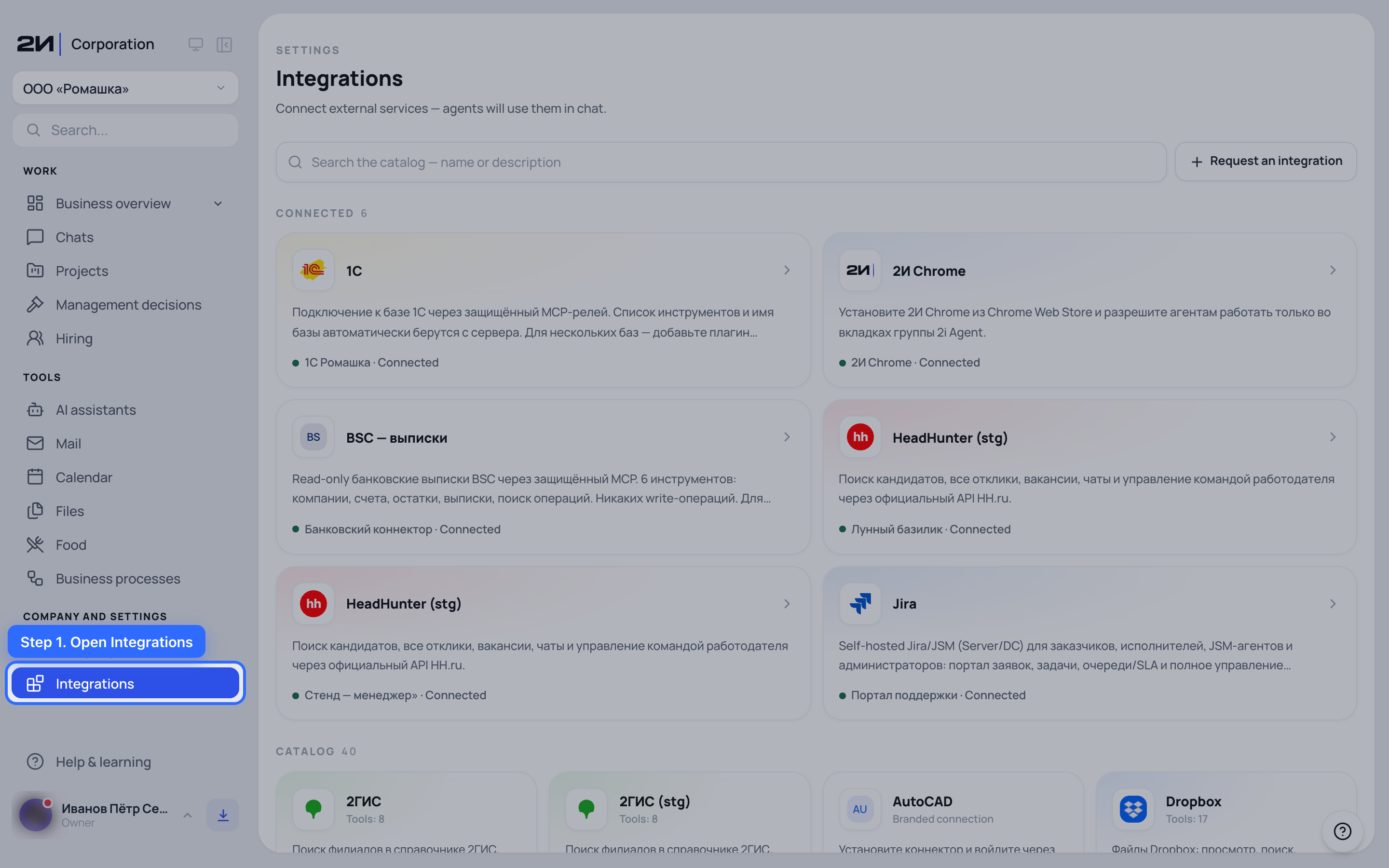
Open Integrations
The section sits in the left menu. Connected systems are listed on top, the catalogue of available ones below.
-
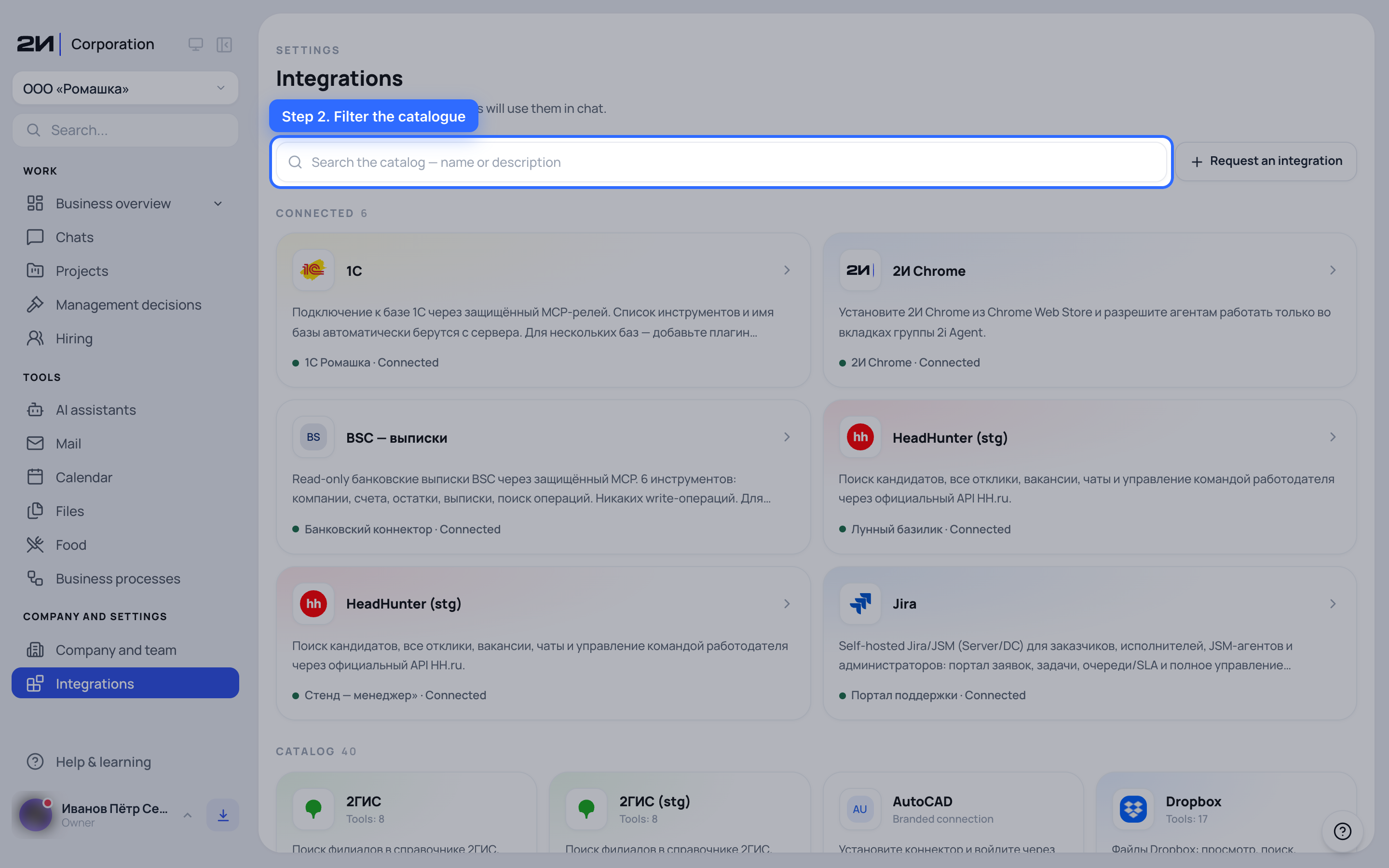
Filter the catalogue
Type «zoom» into the catalogue search. The catalogue holds dozens of systems, and the search leaves only the one you need.
-
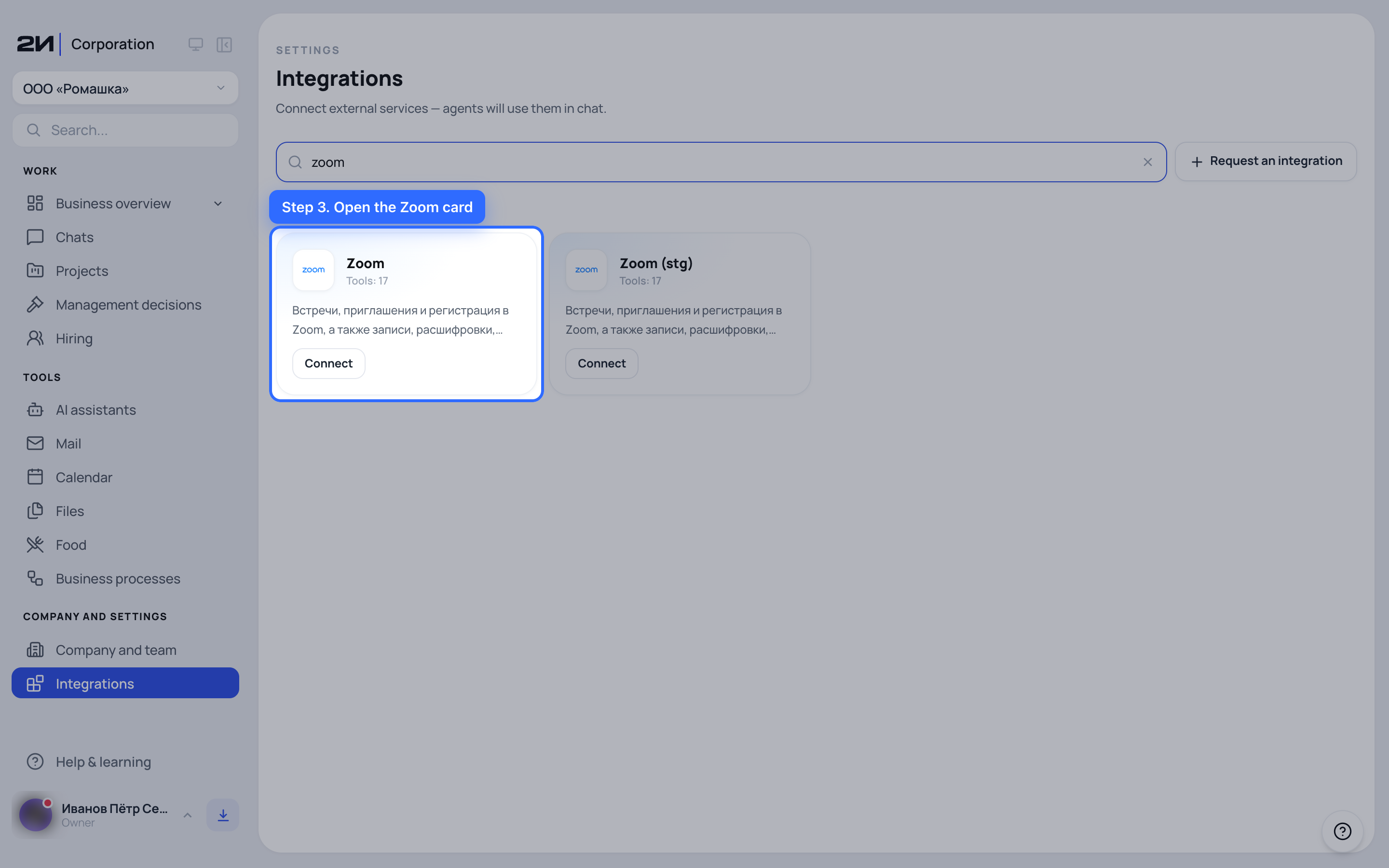
Open the Zoom card
Clicking the card opens the integration description.
-
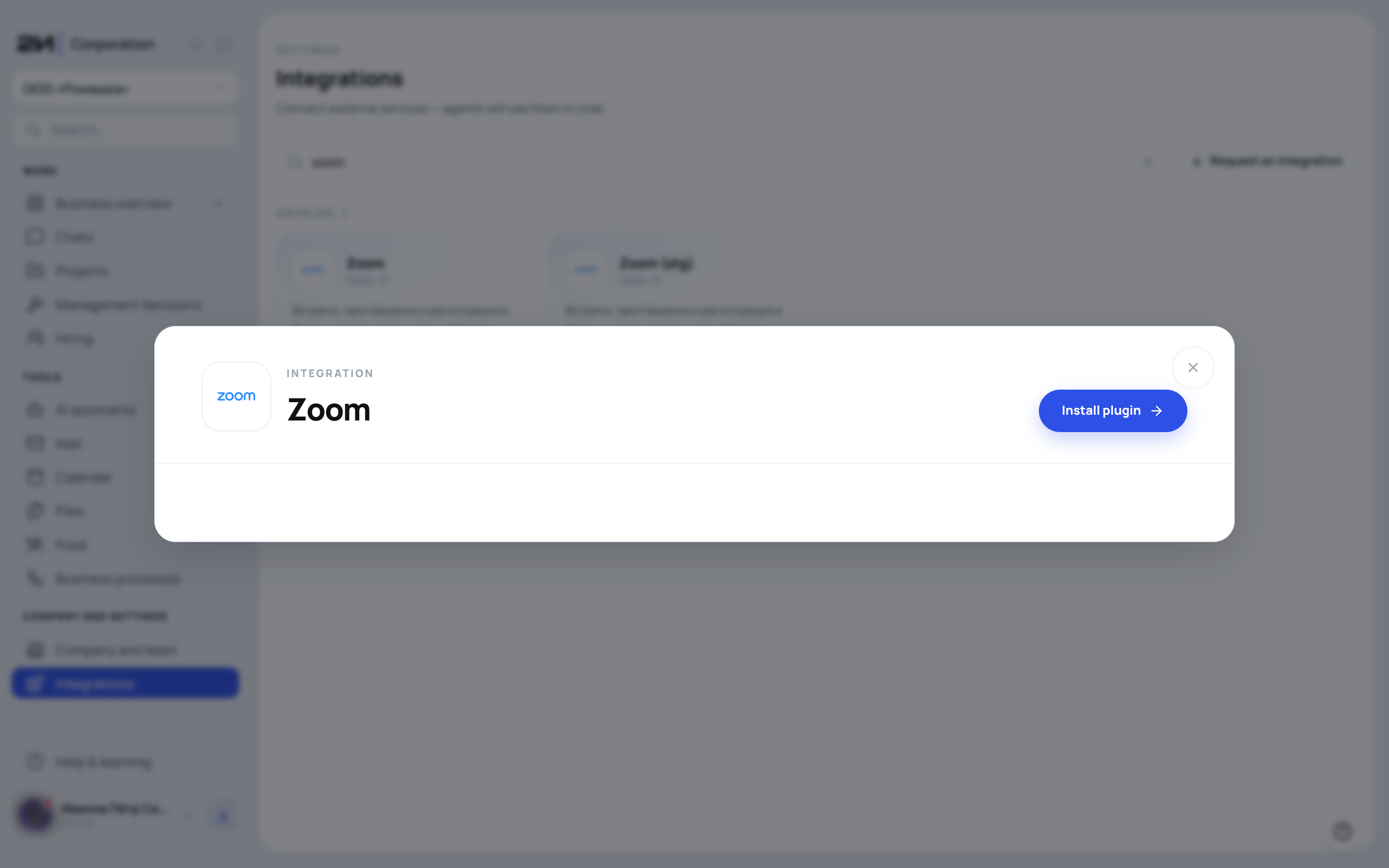
What the integration can do
Meetings, invitations and registration, plus recordings, transcripts, participant lists and AI Companion summaries. All of it becomes a set of tools the agent can use in chat.
-
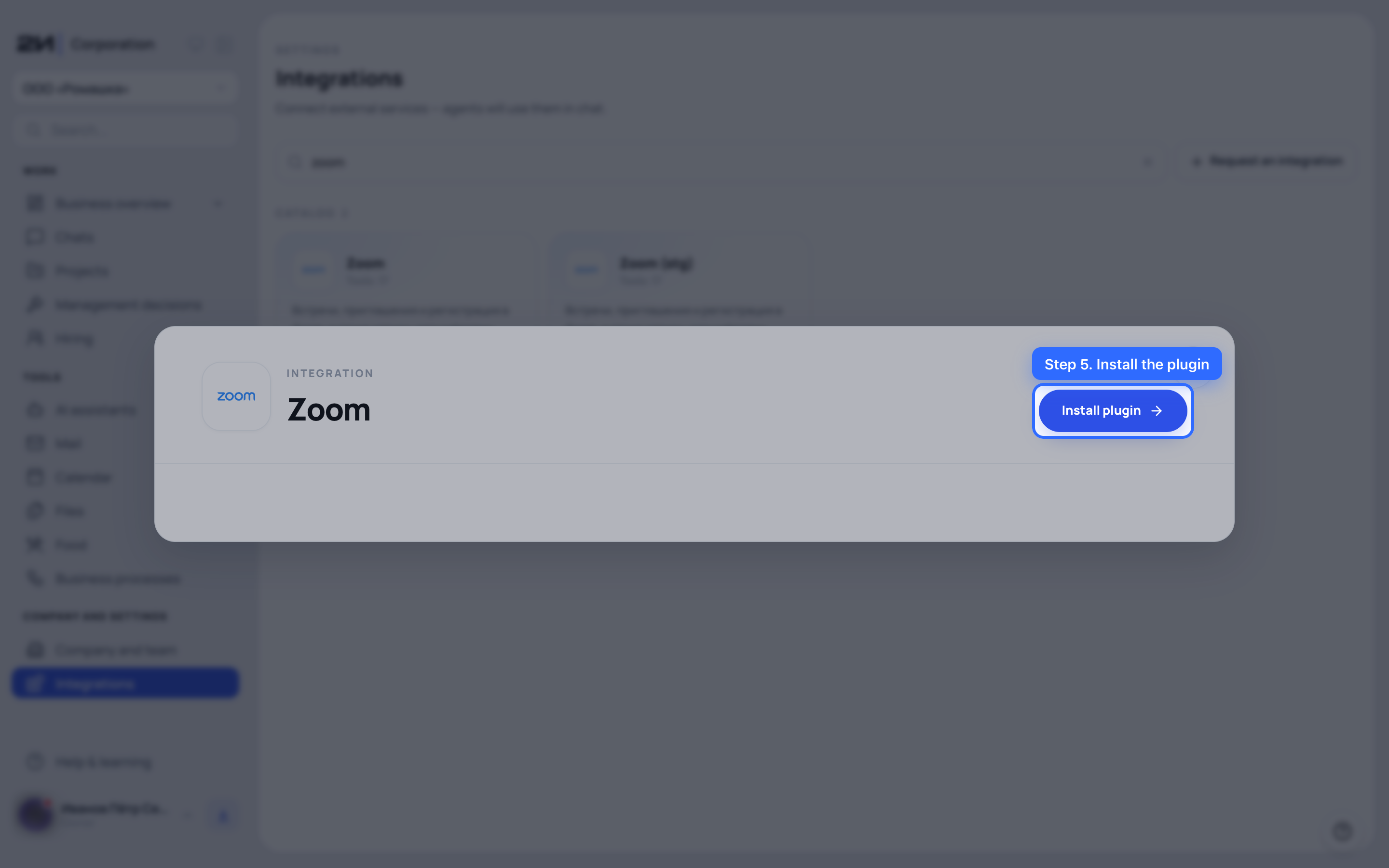
Install the plugin
The plugin is installed once per portal. After that anyone whose role allows it can create connections.
-
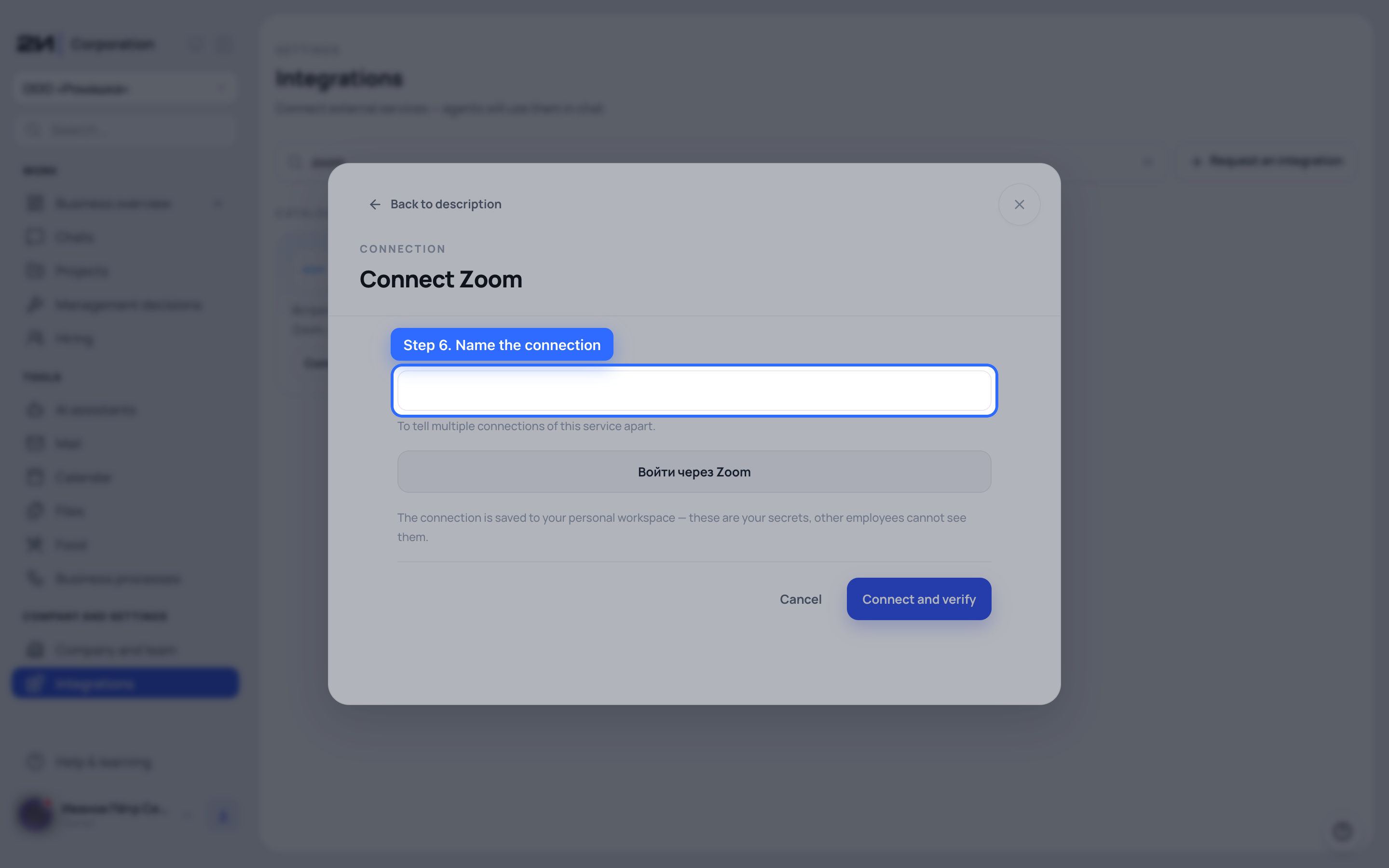
Name the connection
The name is visible inside the portal only. It helps tell connections apart when there is more than one Zoom account, for example «Main account» or «Sales team».
-
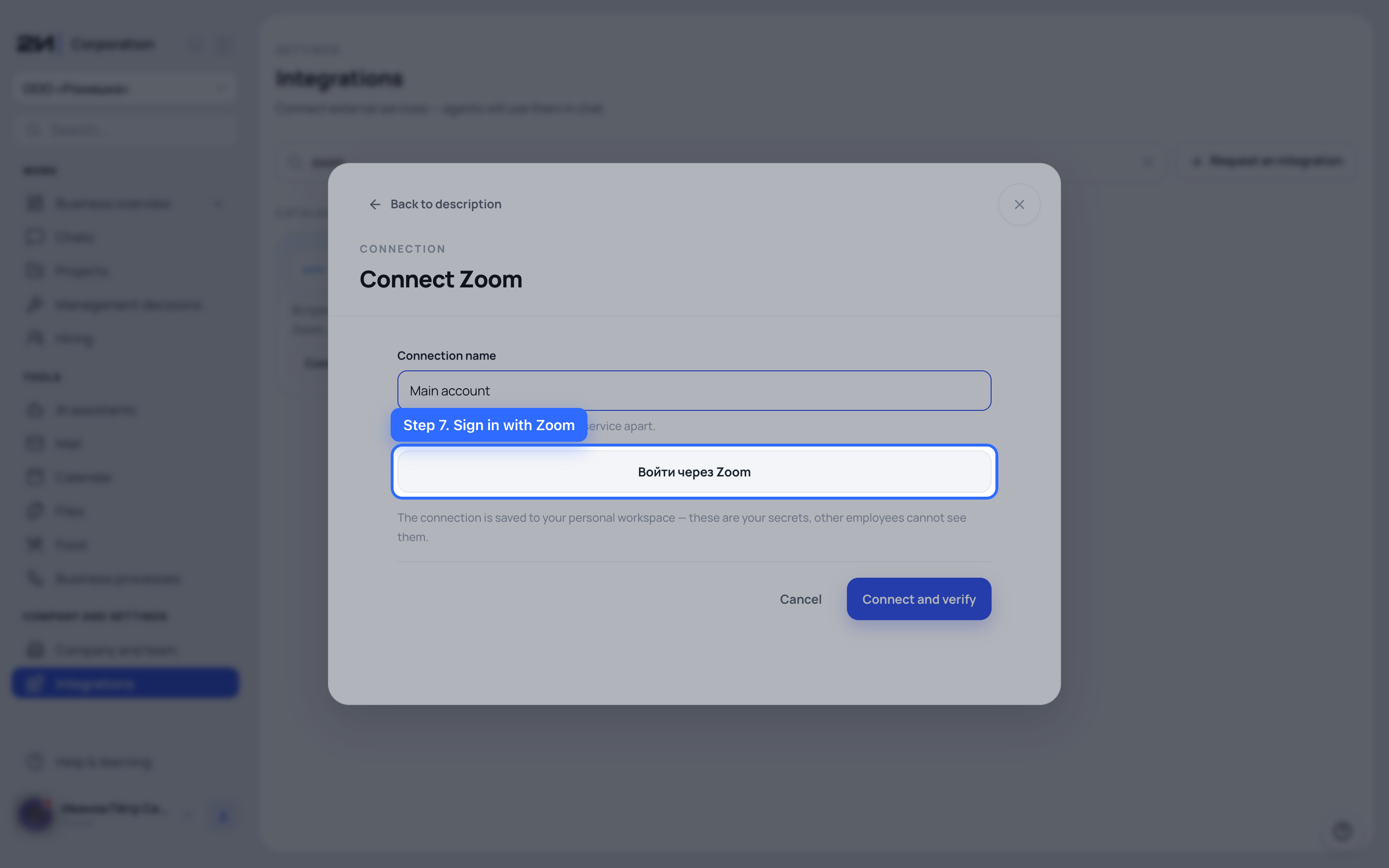
Sign in with Zoom
The button — «Войти через Zoom», still untranslated in this build — takes you to Zoom, where you sign in with your own account and grant the portal access. The portal never sees or stores your Zoom password: only the access granted by Zoom comes back.
-
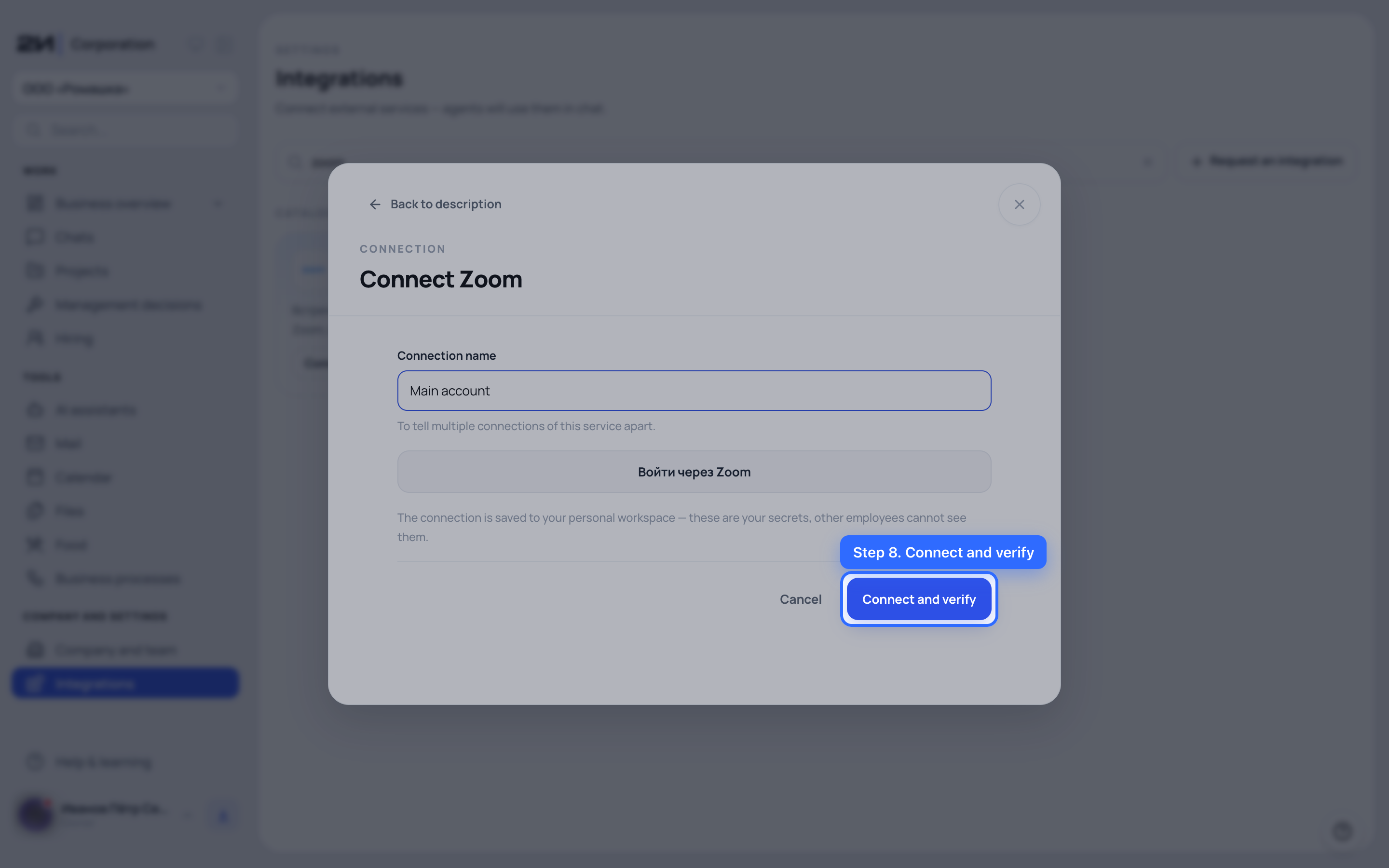
Connect and verify
Press it after you return from Zoom. The portal calls Zoom straight away and tells you whether it worked. Zoom then appears under «Connected» and its tools become available to the agent in chat.
Disconnecting Zoom
-
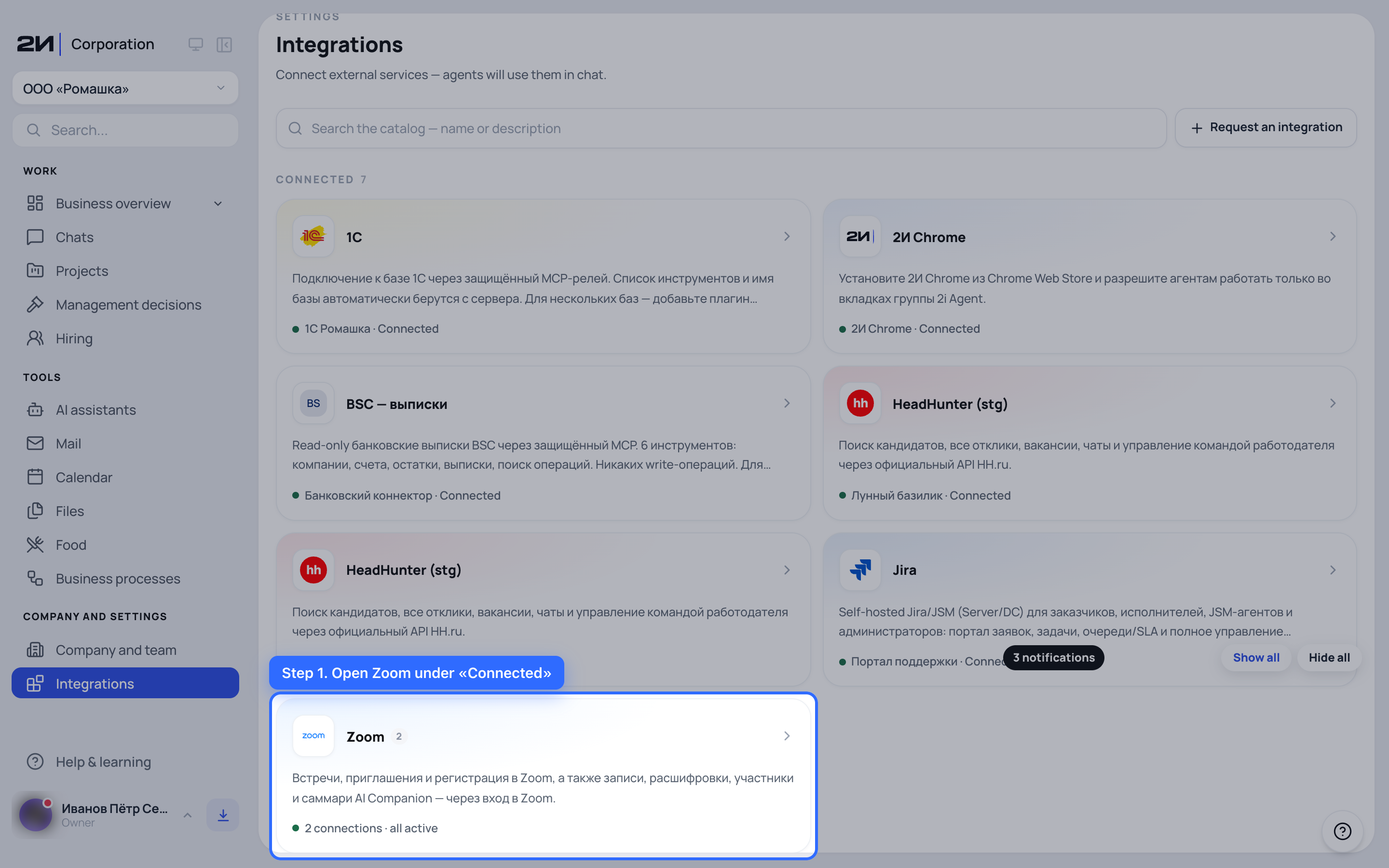
Open Zoom under «Connected»
Disconnecting lives inside the integration itself. Connected systems sit at the top of the section, above the catalogue.
-
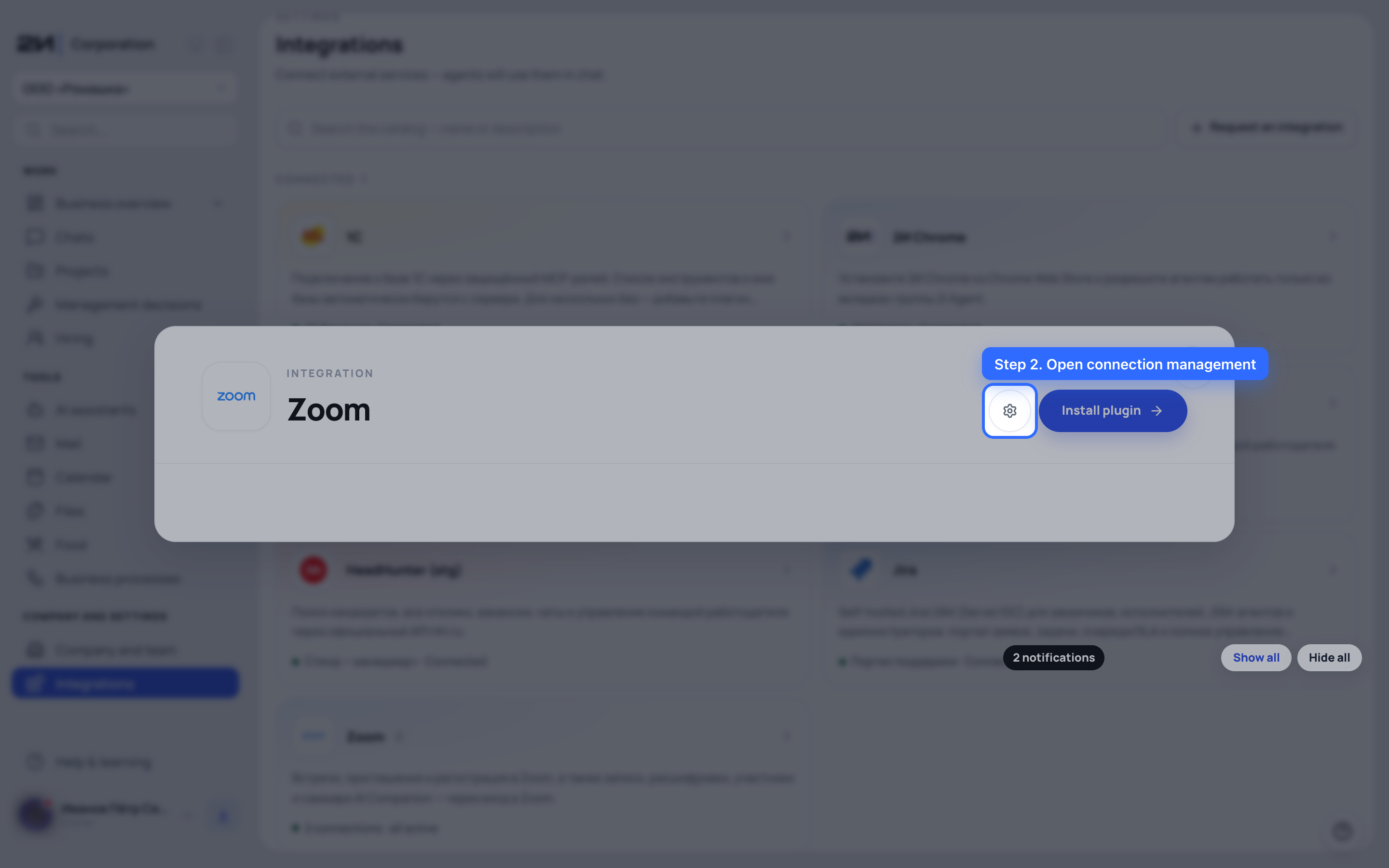
Open connection management
The button sits next to the name. When there is more than one connection, each is managed separately: you can disconnect one and leave the rest running.
-
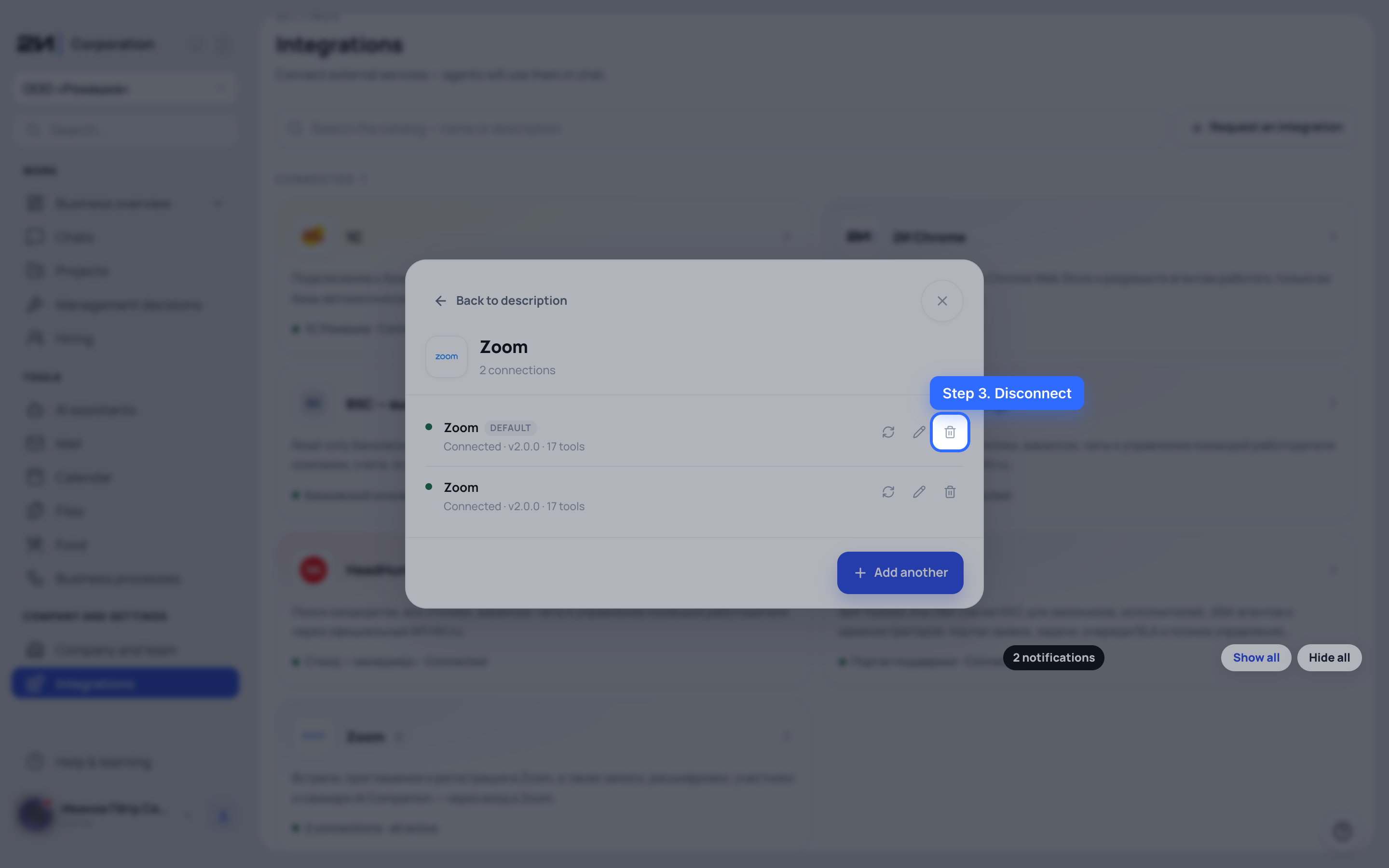
Disconnect
A connection row offers three actions: verify it right now, replace the credentials without disconnecting, and disconnect. Disconnecting removes Zoom's tools from your agents: they stop being available in chats. The stored access is deleted, so reconnecting means signing in with Zoom again.
Screenshots are captured automatically on a test stand. Names, company and addresses on the screens are fictitious.